Aruba AP-387 with integrated antenna has been specially designed for Point to point connectivity across a max. distance of 400 meters. This AP uses 60 GHz 11ad radio bonded with 5 GHz radio for the mesh link connectivity. During harsh weather conditions, it fails back from 11ad to 5GHz radio.
AP-387 is recommended to work with PoE+; instead of PoE. However, it will still work with PoE on 60 GHz radio with 3 dB reduced gain for 60 GHz radio and on restricted more with EIRP of 19 dBm EIRP for 5 GHz.
In our example, we are planning to deploy a point to point mesh standalone setup between two buildings with a distance of 200-meter separation between them. Mounting brackets used is Aruba AP-270-MNT-H3 Mount Kit.
Step 1– Pre-configure Mesh Portal and Mesh Point before deployment
Console into the APs and configure both the APs as standalone access points that are not terminated on any wireless controller. As the APs boot, it is required to interrupt the boot process to set the below environment variables for standalone setup. After which, APs can be rebooted.

Set the right country code for AP to function on the right channel and power

Configure the mesh cluster name and key

The main difference in configuration between an AP acting as a mesh portal and mesh point is that bridging is enabled on a mesh point alone and not the mesh portal. Mesh portal and point forms the mesh link use common mesh cluster name and key for authentication.
In our example, VLAN 9 is the uplink VLAN for mesh portal and point to communicate. Mesh portal can be connected to either trunk or access port. If it is trunk port, it will take the native VLAN of that port to be the management VLAN. In that case, we do not have to specify any VLAN ID in the mesh portal/point. If we specify the VLAN ID in mesh portal and point, then it implies a tagged VLAN.

Mesh Portal

Mesh Point
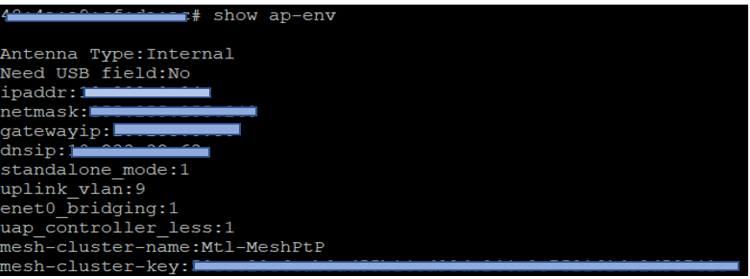
APs get an IP address from network DHCP, by default. However, it better to configure static IP address on both APs for access to mesh portal and mesh point in case of any DHCP issues.
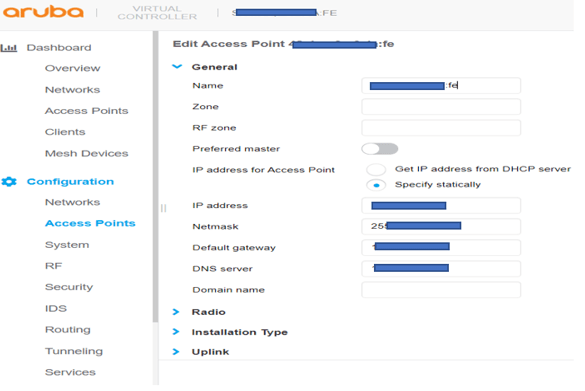
Step 2- Test mesh setup before and after deployment.
It is better to have a quick test to see if the mesh point can form a successful link with mesh portal with our configuration before the install. This will confirm that our config on both the APs is right. Also, anytime a config needs to be updated on both mesh portal and point, do the config on the mesh point first and then the mesh portal. If mesh portal is updated and rebooted, then mesh point goes down immediately and will be unable to update the mesh point.
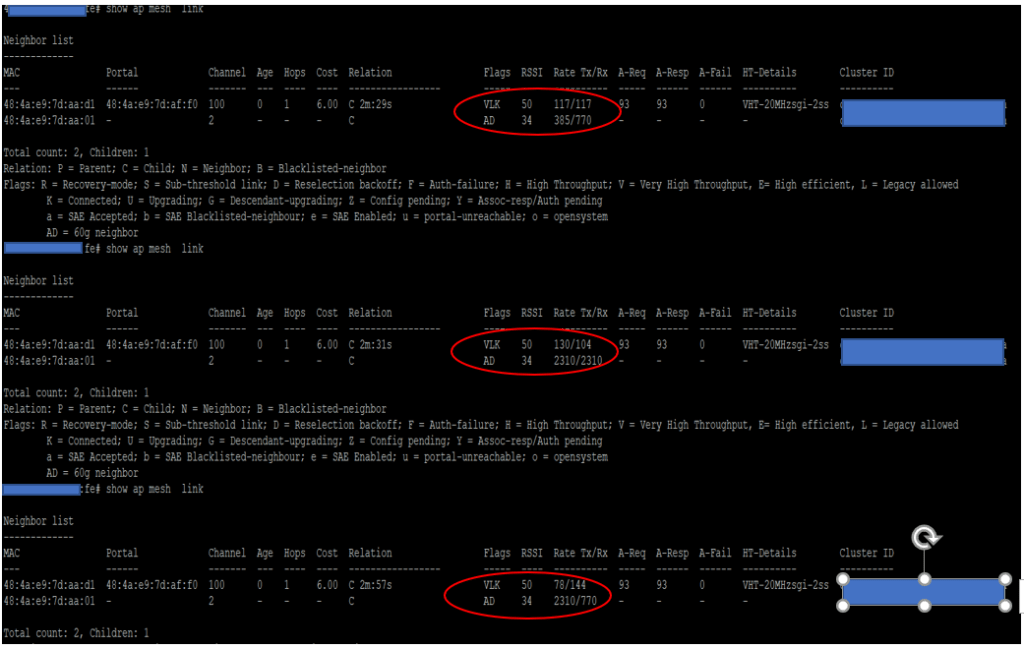
Below screen shots show outputs of 3 commands executed on mesh portal and point for understanding the radio and channel that it is connected to.

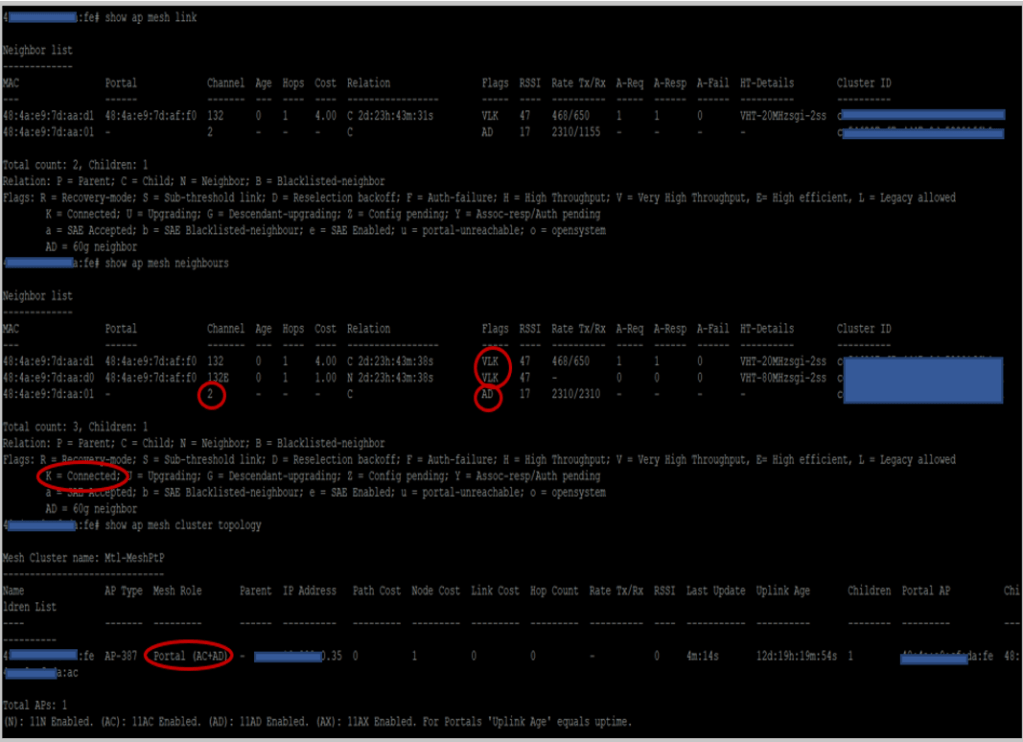
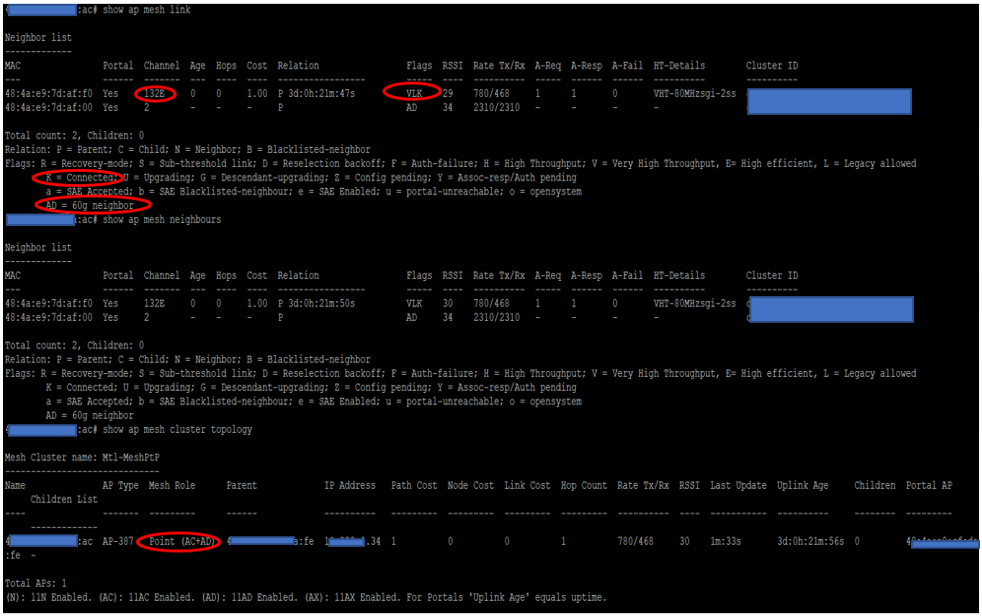
In this example, the mesh link is formed using the bonded 5 GHz radio along 802.11 AD radio for better throughput. Execution of command: “show ap mesh-link” output shows different Tx/Rx rate each time as below:
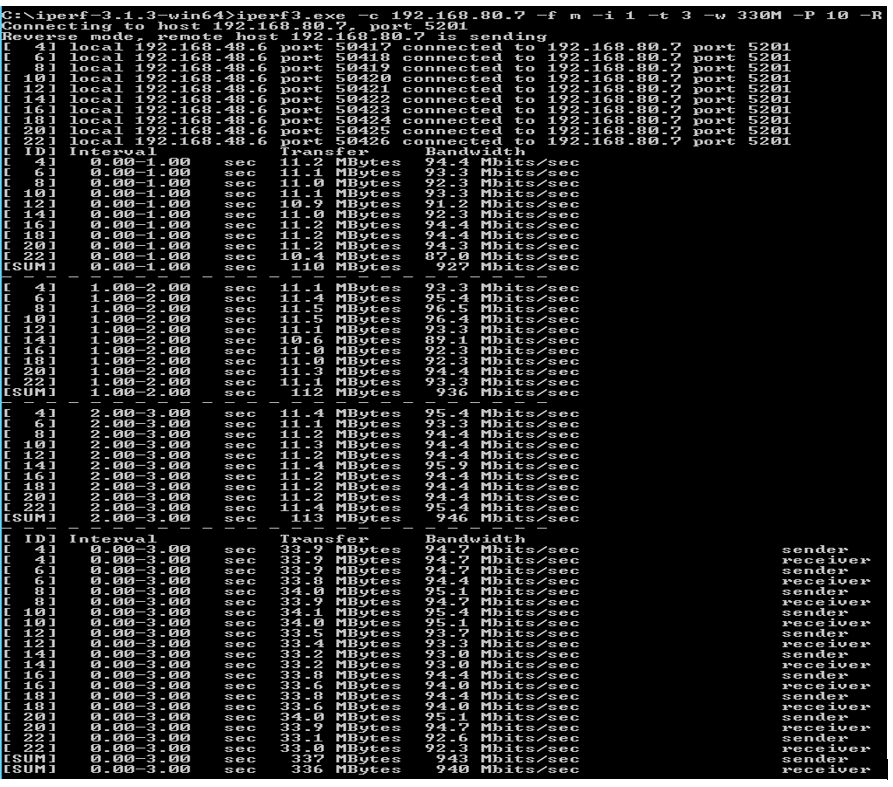
Throughput Iperf test was performed between two wired devices over the mesh link that gave an approximate downlink throughput of 940 Mbps. The aggregate throughput should be over Gbps as per the datasheet. However, the wireless performance is good with this speed without any user complaints. One reason is the bad weather conditions of location of PtP deployment.
Step 3 – Deploy and troubleshoot
If the mesh link is pre-configured and test prior to deployment, then there is very less chance to get any issues. Another reason for it to work straightaway after deployed is due to the integrated antenna that AP-387 has. There is no antenna alignment or gain configuration required.
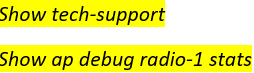
The following commands will be required by Aruba TAC to understand a user setup.
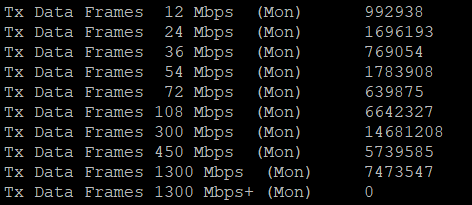
Below Tx and Rx rates shows the max data rate : 1.3 Mbps at which data was transmitted/received ; indicating that it uses both AD and 5 GHz radio. The max data rate that AP 387 can use is 866.7 Mbps , if it was only using 5 GHz radio.

References:
Aruba Powering Next Gen Mobility with Eric Johnson and Onno Harms – YouTube
 Home
Home 