HPE has stopped manufacturing these wireless modules . However, there are still customer enterprises who continue to rely on this wireless product. Online articles are limited.
Our setup has two MSM775 modules in a team where the primary module acting as the team manager had gone bad and we will replace the faulty module with the new one.


Step 1– Make the interim team manager as the primary
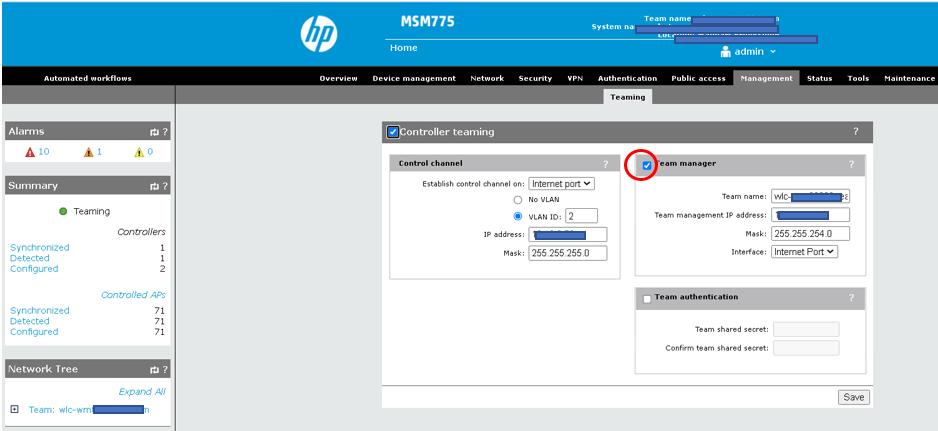
When the primary team manager goes down, the secondary module becomes the interim team manager with limited privileges. It is recommended to make interim team manager as the primary manager. This activity does not reboot the controller or cause any user disconnections. However, it is always better to perform this activity during off-business hours to address any worst-case scenarios.
- Select the controller and navigate to Management>Teaming
- Team manager option should be enabled along with Controller Teaming
- Optionally, you can enable a specific VLAN to allow control communications between the team manager and team member.
- Below example uses a VLAN ID: 2 with an IP address to allow control communications between team manager and team member.
- No controller reboot is required
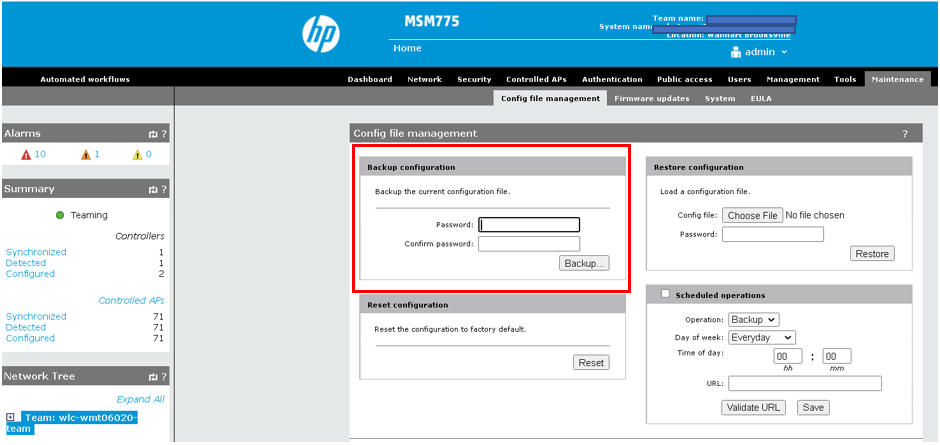
Step 2– Take Backup of the teamed controller module
Navigate to Controller Backup : Team>Maintenance>Config file management
Step 3- Replacement of old module with the new one in the chassis. This should be done only during the scheduled change window.
- Insert the new MSM module as a replacement to the old module and factory reset to access its console.
- Identify the right chassis and slot for removing the old module and inserting the new one
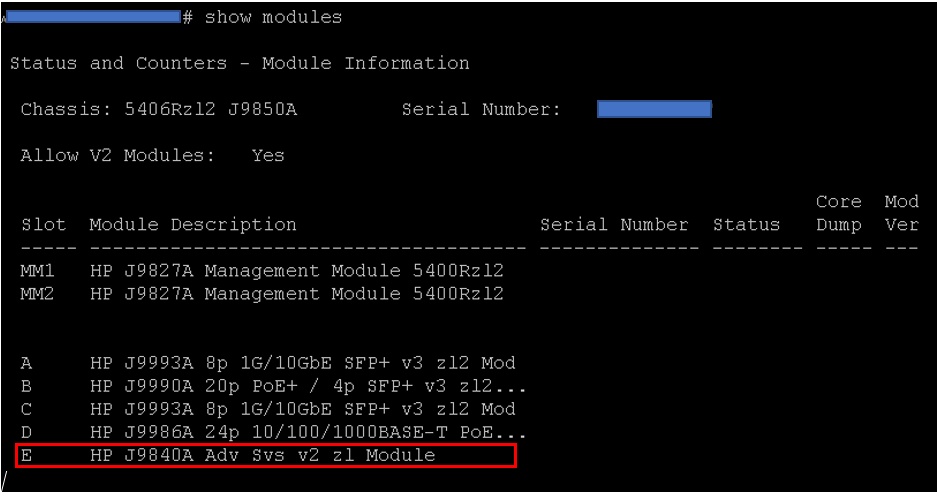
- Disable the MSM module interfaces from the chassis switch
For Example: If the module is present in the slot E of a chassis, then execute the below. The first interface of the MSM module slot is the internet/wan port and the second interface is the LAN port.

- Remove the old module from the slot and insert the new MSM module in the right slot as per the installation guide of HP MSM
https://support.hpe.com/hpesc/public/docDisplay?docId=emr_na-c04035042
- Factory reset the new MSM module by holding down reset button on the module with a paper clip for about 10 sec. (Though the document says 4 sec, it is better to hold it down for 10 sec for confirmation). Controller module can be booted from the switch chassis.
Services E boot
- Access the serial interface of the new module to set its WAN and LAN addresses and enable the LAN and WAN port from the chassis. pre-configure it via the management interface o from the switch chassis with default credentials: admin
Example. To access console of MSM module in slot E, execute the below commands in the chassis switch.

- Enable the uplinks of the controller module on the chassis switch and access the web management of the MSM using the WAN IP address.
- Perform the initial setup configurations and make sure to set the right LAN and WAN IP with all the other settings like – DNS, NTP
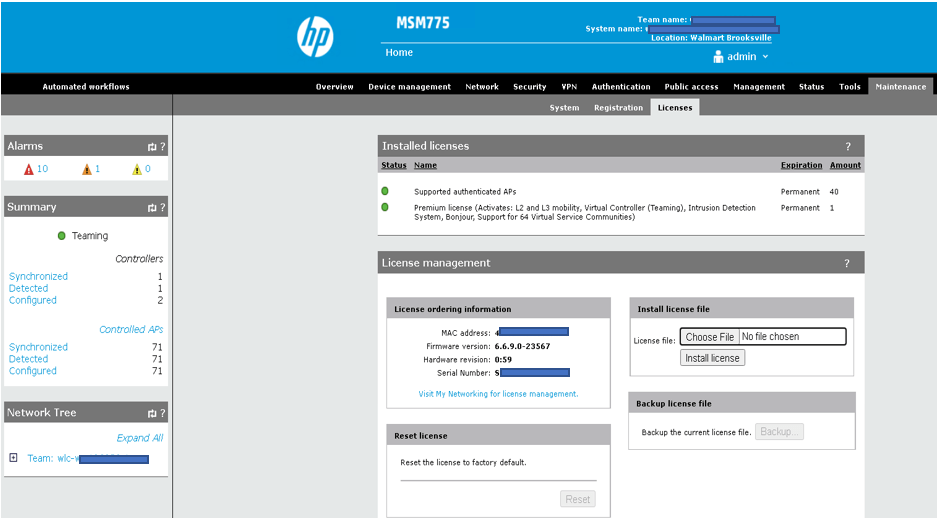
License transfer from old faulty controller module to the new module should be performed only during the CR after installation and configuration of the new module. A case can be created with HP team for the license transfer for the same. The license file provided by HP should be installed in the controller module.
 Home
Home 